Have you ever tried to read something on your phone in bright sun and struggled to make out the words? Tried to follow a video on mute in a waiting room with no captions? Filled out a form with one arm in a cast or a sling?
Each of those is a small, temporary taste of something millions of people deal with every day. For you, the glare passes and the cast comes off. For a lot of your customers, that is simply what using the web is like.
Website accessibility boils down to one simple question: can everyone who wants to use your website actually use it?
Think of the curb cut, the little ramp where a sidewalk meets the street. It was built for people in wheelchairs. Today it gets used by parents pushing strollers, travelers pulling luggage, and workers moving heavy carts. This is known as the curb-cut effect, and websites work the same way. Captions written for deaf viewers get read by everyone watching on mute. Strong contrast helps the person with low vision and the person squinting at a phone in a sunny parking lot.
Let's look at who is affected by website accessibility, and how.
Who's affected, and how
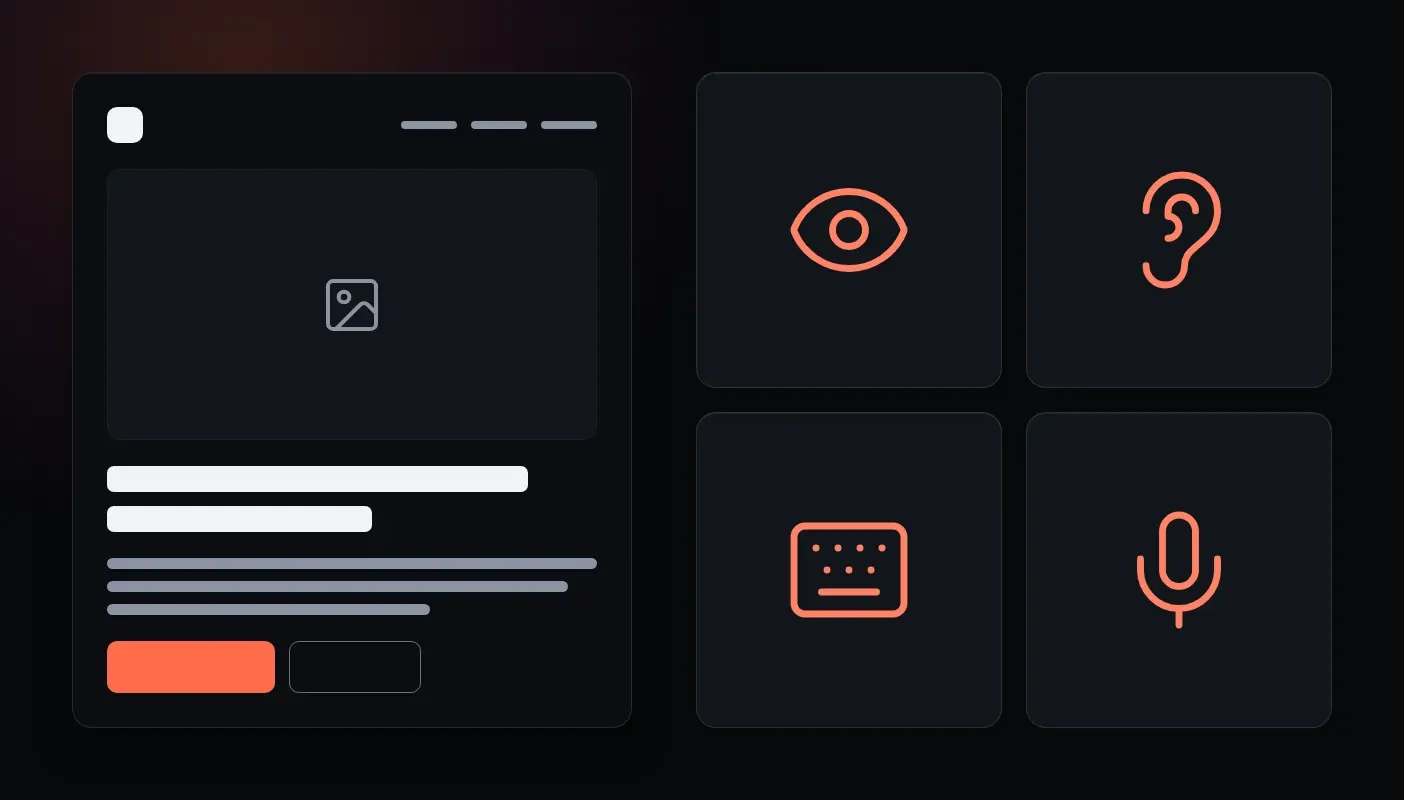
- Vision: People who are blind often use a screen reader, software that reads the page aloud, so images need text descriptions and buttons need names. People with low vision zoom in and need strong contrast between text and background. For people who are color blind, color alone can't carry meaning. A required field marked only in red might as well not be marked.
- Hearing: People who are deaf or hard of hearing miss anything that exists only as sound, which makes captions on video and transcripts for audio essential.
- Movement: Some people, like the one with an arm in that sling, can't use a mouse. They rely on a keyboard, voice control, or other tools, so everything on your site has to work without one.
- Thinking and learning: Dyslexia, ADHD, and memory loss call for plain language, a consistent layout, and no surprise motion.
- Seizure and balance conditions: Flashing content can trigger seizures, and heavy animation can make people with balance disorders physically ill. Phones and computers have a "reduce motion" setting for exactly this reason. A well-built site checks that setting (developers know it as prefers-reduced-motion) and calms itself down.
- Temporary and situational: A broken wrist, aging eyes (I'm gradually starting to feel this one myself), a baby in one arm, a slow connection.
How many people this is, and what's at stake
More than one in four U.S. adults, over 70 million people, reported a disability in the CDC's most recent data. Among adults 65 and older, the rate is 43.9%. That is not a niche audience. It's more than a quarter of the adults who might want to do business with you, and more than four in ten of the older ones.
What's at stake for them is independence, privacy, and dignity. Think about paying a water bill, booking an appointment, reading a menu, or applying for a job. When a website works, a person handles those things on their own. When it doesn't, they have to ask someone else to do it for them, often sharing personal details along the way, or they give up and go somewhere else.
Where the web stands
Not well. Every year WebAIM, an accessibility organization based at Utah State University, scans the home pages of the top one million websites. In its 2026 report, 95.9% of those home pages had detectable accessibility failures, with an average of 56 errors per page. Low-contrast text alone showed up on 83.9% of them. And that is only what an automated scan can catch.
The good news is in the same report. Of all the errors found, 96% fell into just six categories:
- Low-contrast text
- Images with no text description
- Form fields with no labels
- Links with no text
- Buttons with no text
- Pages that don't declare what language they're in
Those have been the top six for seven years running. None of them is exotic. They're basic, and they're very fixable.
The laws, briefly
The laws themselves aren't new. The Americans with Disabilities Act dates to 1990. What's new is that regulators have started attaching specific technical standards and deadlines, and the lawsuits keep coming. Here are the basics of what covers what. (This is a plain-language overview, not legal advice. For questions about your own obligations, talk to an attorney.)
- ADA Title II covers state and local government: cities, counties, public schools, community colleges, public libraries. In 2024 the Department of Justice finalized a rule requiring their websites and mobile apps to meet a standard called WCAG 2.1 Level AA. In April 2026 the DOJ pushed the deadlines back a year, to April 26, 2027 for governments serving 50,000 or more people and April 26, 2028 for smaller ones and special districts. The standard itself didn't change, though the DOJ has said it may revisit parts of the rule. If you build websites, apps, or documents for a local government, this deadline is yours too. The rule covers content a government provides through its contractors and vendors.
- ADA Title III covers businesses open to the public: stores, restaurants, banks, hotels, medical offices. There is no web-specific regulation here, and the effort to write one is paused indefinitely. That doesn't leave businesses in the clear. The DOJ's long-standing position is that the ADA applies to what a business offers online, and people sue under it. Plaintiffs filed 3,117 website accessibility lawsuits in federal court in 2025, up 27% from the year before. Courts don't all agree on how far Title III reaches, especially for online-only businesses, which is one more reason to ask a lawyer about your situation.
- Sections 504 and 508 are parts of the Rehabilitation Act of 1973. Section 504 covers organizations that receive federal funding, which takes in a lot of nonprofits, schools, and healthcare providers. The Department of Health and Human Services has its own web rule for the organizations it funds: WCAG 2.1 AA by May 11, 2027 for those with 15 or more employees, and by May 10, 2028 for smaller ones. Section 508 covers federal agencies themselves. It reaches businesses indirectly: if you sell technology or digital services to a federal agency, expect to be asked to show that what you sell is accessible.
Where WCAG fits. WCAG, the Web Content Accessibility Guidelines, is not a law. It's the yardstick the laws point to. It's published by the World Wide Web Consortium (W3C) and built around four ideas: content should be perceivable, operable, understandable, and robust. It comes in versions (2.0, 2.1, 2.2) and levels (A, AA, AAA). WCAG 2.1 Level AA is the bar set by both the Title II rule and the HHS rule, and WCAG is what DOJ settlements and court orders have pointed to in cases against businesses. A newer version, 2.2, adds nine requirements, and a site that meets 2.2 also meets 2.1. If you're wondering what to aim for, 2.1 AA is the practical target.
What accessibility isn't
- It isn't a widget. No "overlay" plugin, the kind that adds an accessibility toolbar to the corner of a page, is going to fix your site. In 2025 the Federal Trade Commission required overlay vendor accessiBe to pay $1 million to settle allegations that it misrepresented its product's ability to make any website compliant. Real accessibility takes an audit against the WCAG standards and, usually, changes to the code.
- It isn't a one-time project. Every new page, photo, PDF, and social media post is a chance to add a barrier or avoid one. Accessibility has to become part of how the people who update your site work every day.
- It isn't a reason for an ugly site. Accessible sites can look great. Accessibility just has to be part of the design from the start instead of bolted on at the end.
Three things to try today
You don't need special tools or training to get a first read on your own site. Give these ten minutes.
- Put the mouse away. Load your home page and press the Tab key, over and over. Can you see where you are on the page at each step? Can you reach the menu, the links, and the contact form, and submit that form using only the keyboard? If you get lost or stuck, so do your keyboard users.
- Check your contrast. Find the lightest text on your site (pale gray on white is the usual suspect) and run the text and background colors through WebAIM's free contrast checker. Body text should score at least 4.5 to 1.
- Look for image descriptions. Run your home page through WAVE, WebAIM's free checker, and see how many images are flagged as missing alternative text. Then read the descriptions that do exist. Would they make sense to someone who can't see the picture?
None of this adds up to a full audit, and automated tools catch only part of the picture. But you'll know quickly whether you have work to do.
Where to go from here
If you came into this picturing wheelchair ramps or lawsuits, I hope the picture is a little different now. Accessibility comes down to whether the people who want to do business with you can. Most of the barriers are basic, many of the fixes are too, and like that curb cut, the work pays off for every visitor.
If you tried the three checks above and didn't love what you found, or you'd rather have someone else do the looking, get in touch with us at ThoseGeeks. We can take a quick look at your site and let you know what we find.
Comments
No comments yet.
Leave a comment
We read every comment before it appears.